
List of all jobs
Jobs within the mobile app are presented in a list format. This guide will explain how to navigate the list and utilize its filtering options effectively.
This article has a video version
Jobs list
After you have logged in to the Planado mobile app, you will see a list of all your and your team's jobs.
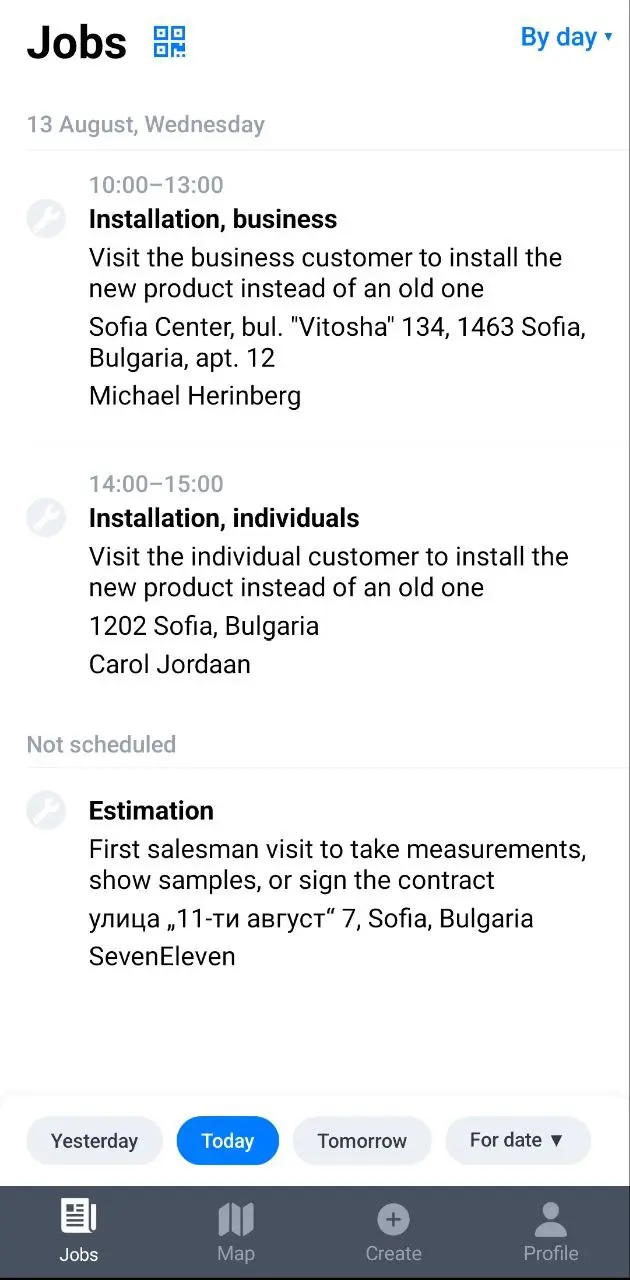
Jobs in this list display the following information:
- job planned time;
- job status;
- job type;
- description;
- address;
- job site.
Jobs without a scheduled date are displayed separately as Unscheduled.
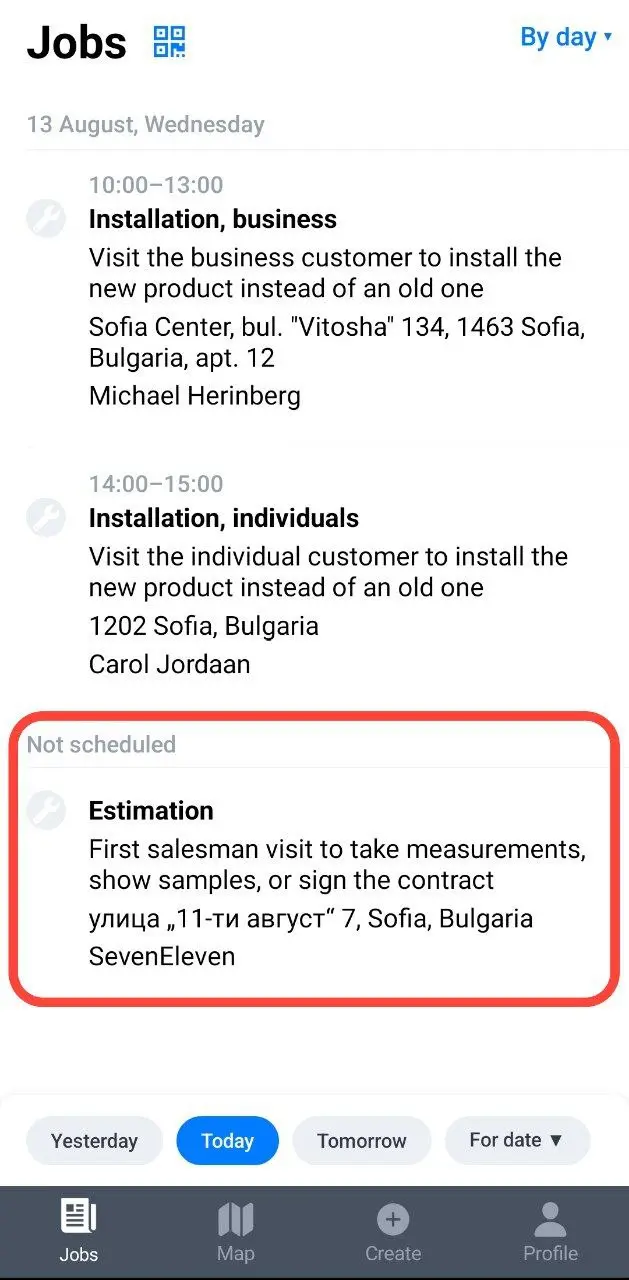
This option is suitable for tasks that do not have a deadline.
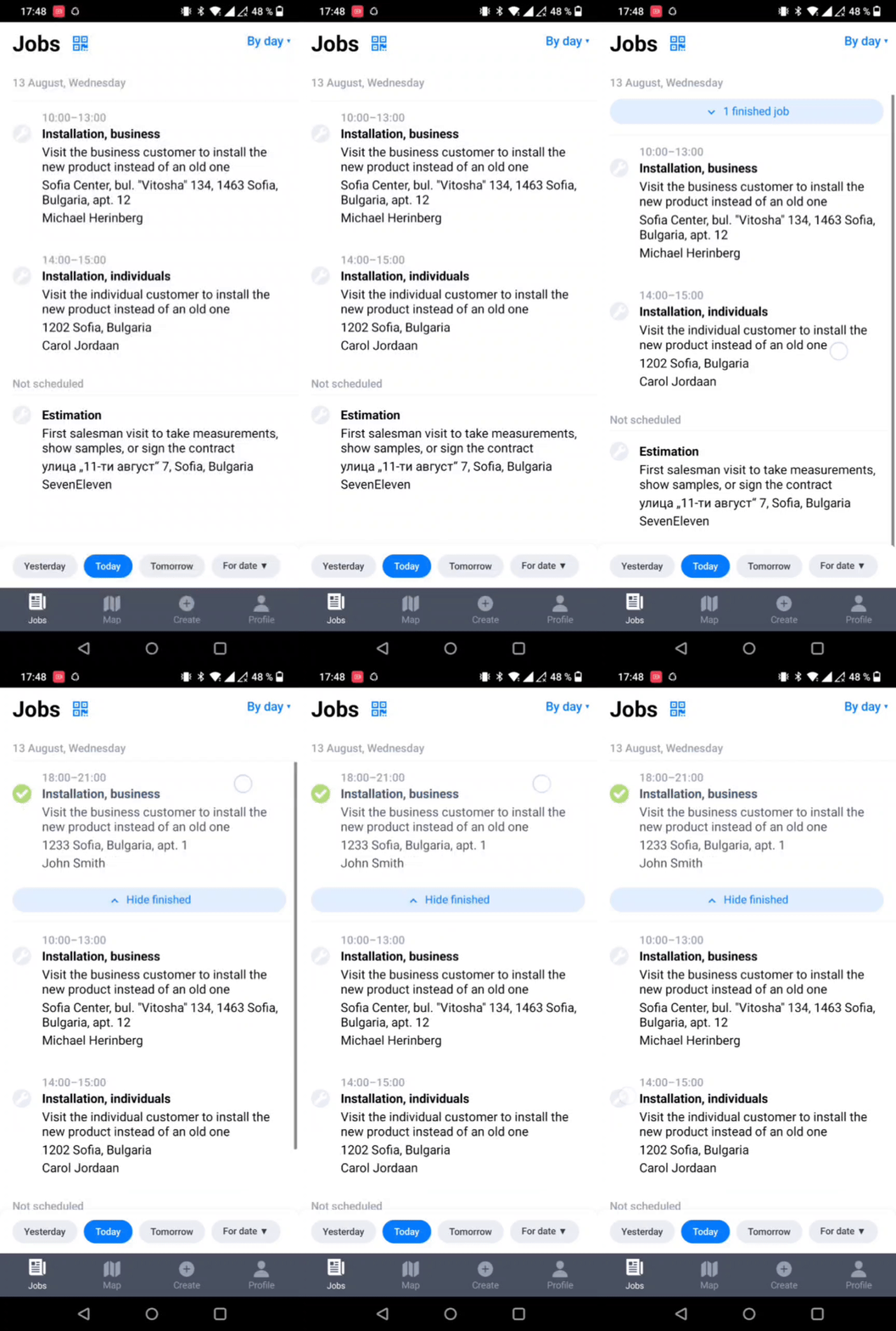
Completed jobs are hidden behind a drop-down menu. To view them, pull the screen down from the top. A list of completed jobs for today will open.
Date filter
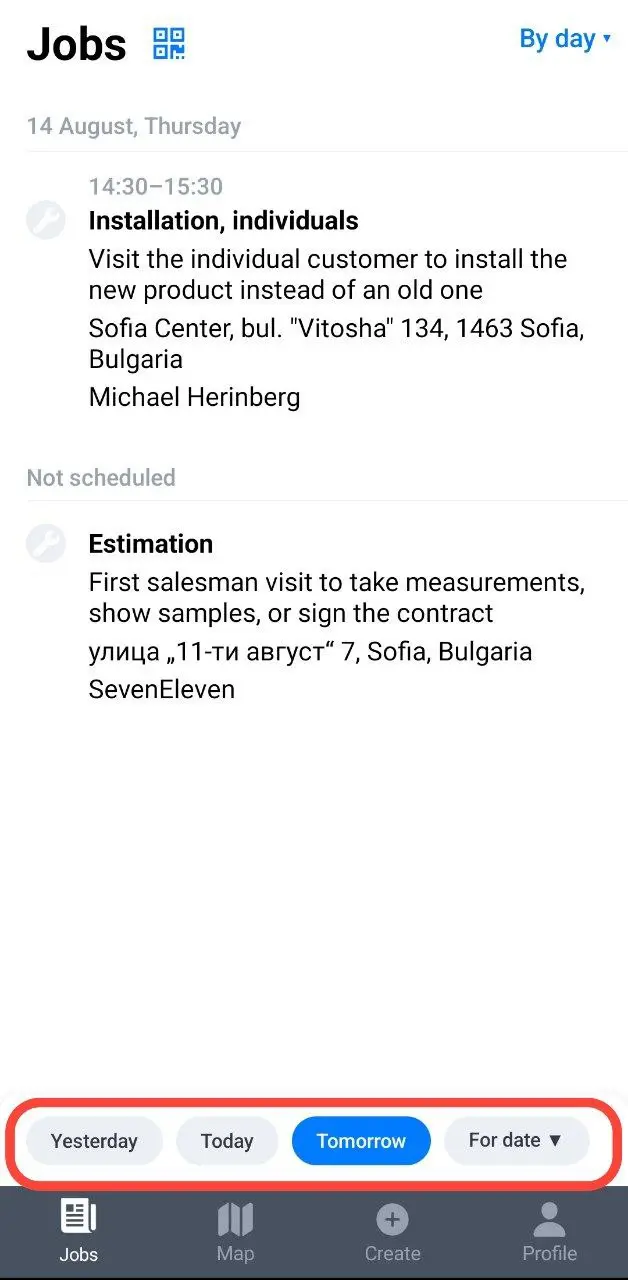
By default, Planado shows jobs for the current day. Switch the filter to view jobs for another day.
You can also select a date in the calendar.
In the calendar, days with scheduled outfits are marked with blue dots. There is a viewing restriction for scheduled jobs: only jobs scheduled for the next 7 days from the current date are displayed. For example, on March 9, jobs for March 2 are displayed, but not for March 1. This applies to jobs that have not yet been started.
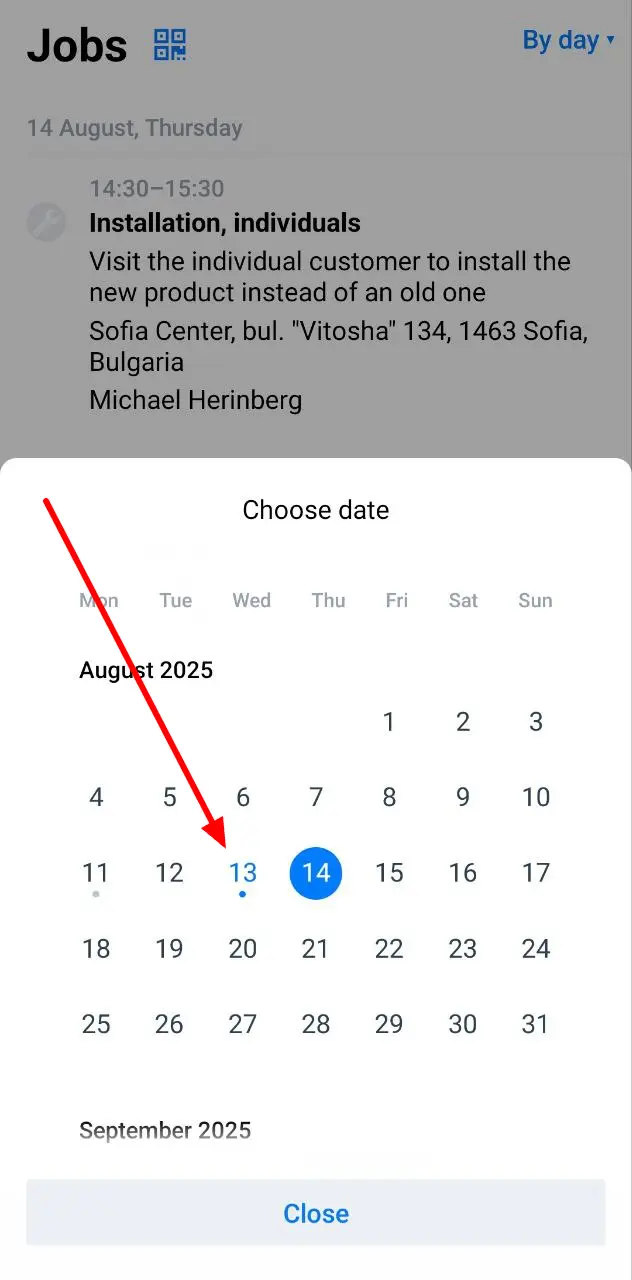
If the job is scheduled for future days, then it does not have this restriction.
Days with completed jobs are displayed as gray dots regardless of their scheduled date.
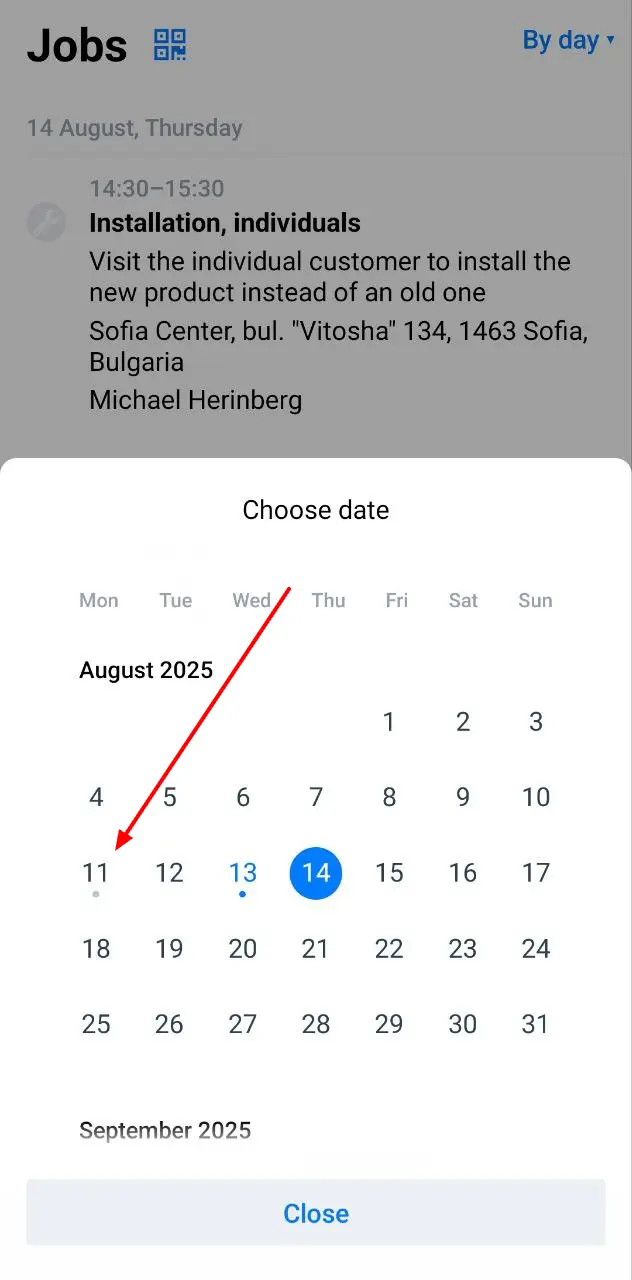
Status filter
In addition to the date, jobs can be filtered by their status: completed and incomplete.
To do this, click on the filter selection in the upper right corner of the screen and switch to the By status filter.
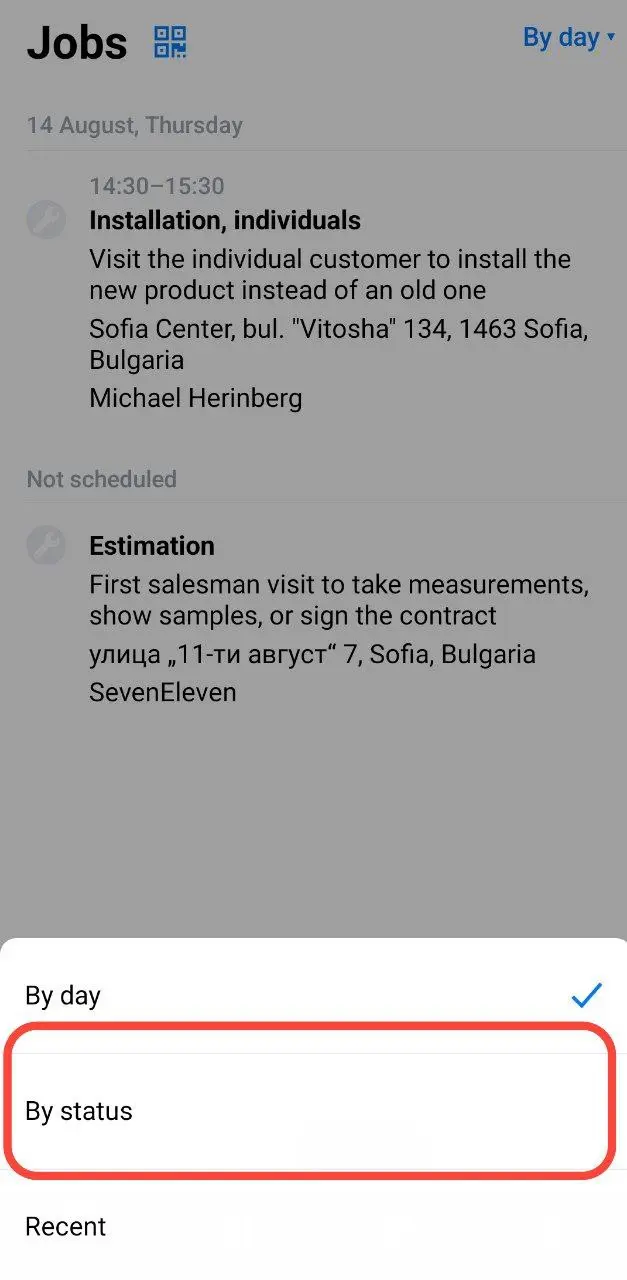
As a result, you will see two tabs: Finished and Unfinished.
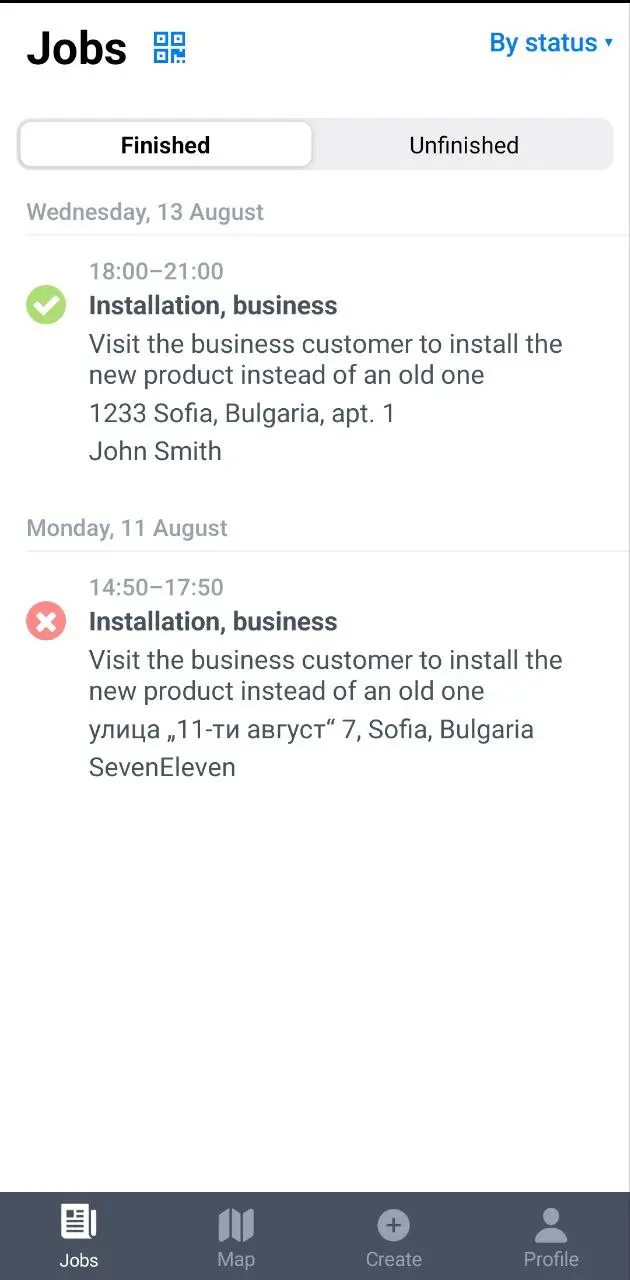
This allows you to find unfinished jobs from previous days or evaluate work planned for the future.
Filter recent
The Recent filter displays all available jobs in chronological order, as well as jobs you have created via the mobile app.
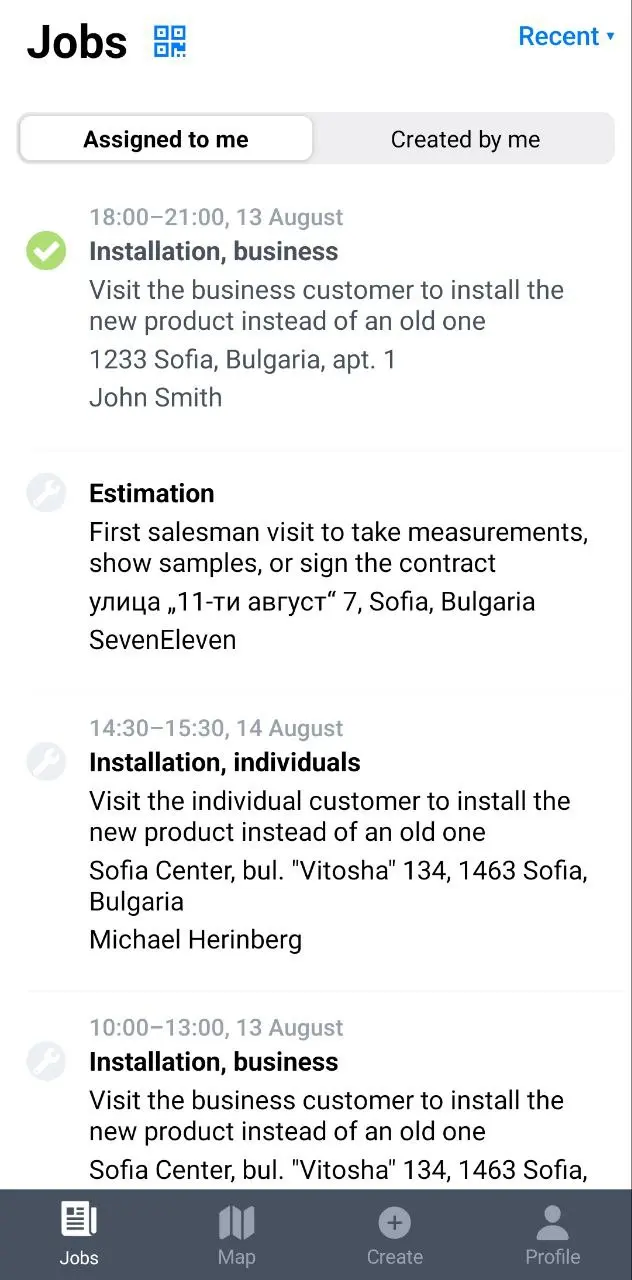
To switch to the Recent filter, click on the filter selection button in the upper right corner and select Recent.
The Recent filter consists of two tabs: Assigned to me and Created by me. Assigned to me shows all your jobs in chronological order, while Created by me shows jobs you have created using the mobile app.
More details on creating jobs via the mobile app are described in the instructions.
If you have any questions regarding the jobs list in the mobile app or other Planado functions, feel free to ask them at support@planado.app or on our support portal.