
Add new users
To invite up to 20 users with the same role by email or SMS, follow Invite users. Invitations work for web and mobile app users.
Add employees who will use the Planado web app or mobile app. You can create an account manually or send an invitation; invitations are available for any role.
You need administrator access or the relevant user-management permissions. Available roles are limited by the access you can grant.
Add a user manually
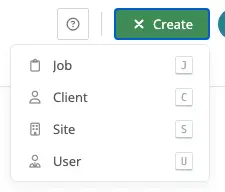
Open Settings → Users. In the global Create menu, choose User.
Enter the employee’s first name, last name, email address and mobile phone. Set the password they will use to sign in to Planado. You can also choose a time zone. Contact details can be used in SMS notifications.
Select the required role in Roles. For example, choose Field worker for an employee who will complete jobs in the mobile app. A role controls access; creating an account alone does not grant all permissions.

For access beyond the selected roles, click Edit under Additional permissions. Roles and additional permissions are combined. Some settings, such as territories and skills, appear when the employee has the relevant access. If business unit selection is available, check where the roles apply.

Check the license indicator in the form. A paid role uses a paid seat; make sure a seat is available before creating the employee.
Click Create to save the new user.
Edit an employee
Select an employee in Settings → Users to update their details, login information, roles or additional permissions. Save the changes in their form. You can also find an employee with the global search at the top of Planado.
Learn more about roles, permissions and paid seats. To assign a shared set of permissions, use groups. To assign several workers to a job, use teams.
If you have any questions about this or other Planado features, email our support team at support@planado.app.